Pages & links
Build out your site's pages, then link between them. Each page is a real Next.js route, and home is /.
Pages
Manage pages in the Pages panel in the left sidebar.
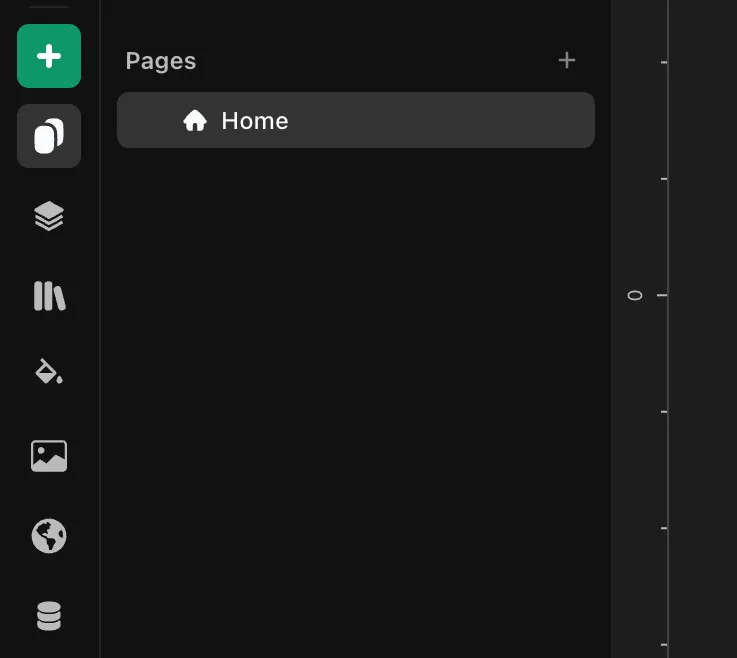
Press + to add a page. You can create three kinds:
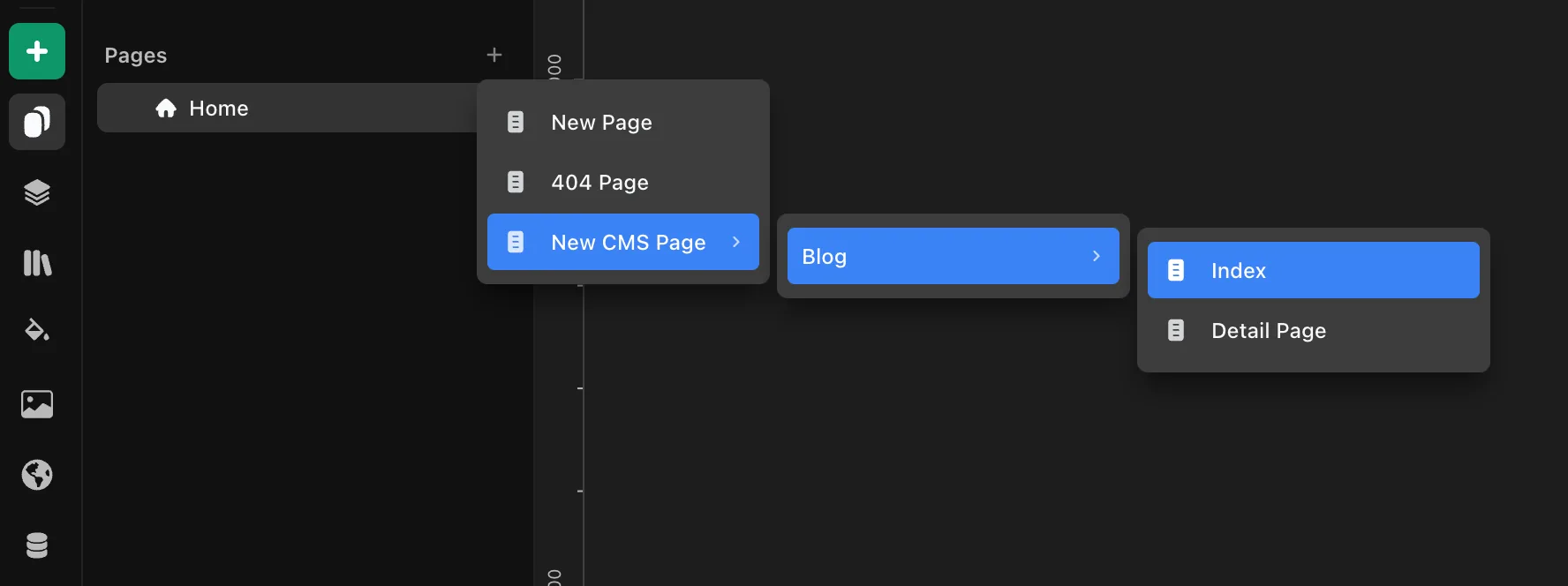
- New Page — a normal page at its own URL.
- 404 Page — the page shown when a visitor lands on a URL that doesn't exist.
- New CMS Page — a page driven by a collection. Pick the collection (for example, Blog), then choose one of two kinds:
- Index — one page that lists every item in the collection, like
/blog. - Detail Page — one template that renders a separate page for every item, on a dynamic route like
/blog/[slug]. See Showing content.
- Index — one page that lists every item in the collection, like
Rename, reorder, and delete pages from the same panel. Folders act as route groups.
Links
Add a Link to any element — text, a button, an image — to send visitors somewhere.
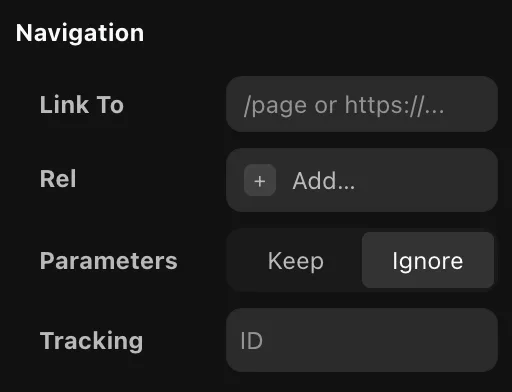
- Link To — a page in your project, an external URL (
https://ormailto:), or an anchor (#section) on the current page. For external links, toggle open-in-new-tab. - Rel — add
relattributes for SEO and security: No Follow, No Referrer, UGC, Sponsored. (noopeneris added automatically for new-tab links.) - Parameters — Keep forwards the current page's query string to the link; Ignore sends a clean URL.
- Tracking — give the link a tracking ID so its clicks can count toward an A/B test goal.
Scroll to a section
- Give the target element an id on its page — that marks it as an anchor.
- On the link, choose that page. Its anchors appear automatically, so you just pick the section to scroll to — no need to type the
#idyourself. - Set a scroll offset so the section doesn't sit under a fixed header.
Wrap a button or nav item in a link to make the whole element clickable.