Images, video & audio
Add media as its own element, or set an image or video as the background of a frame.
Insert media
Open the Insert panel (+) and go to Elements. Image, Video, and Audio sit under Basic — drag one onto the canvas to place it.
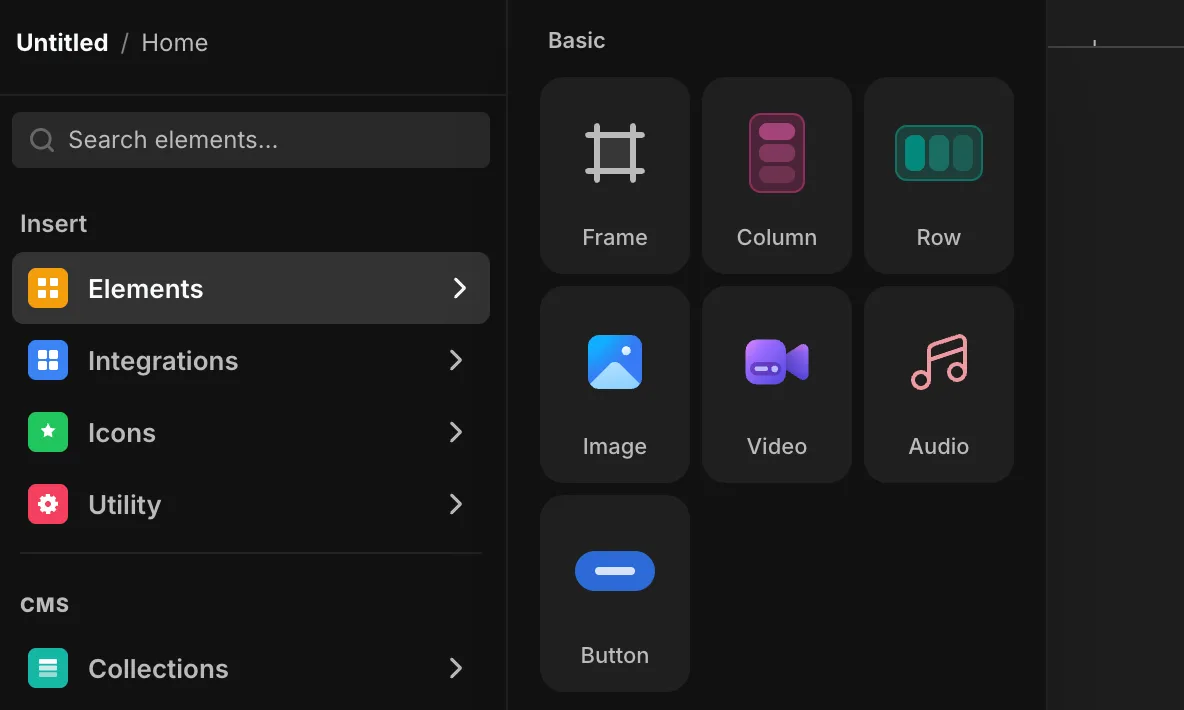
Select the element to set its options in the right panel:
- Image — set the source, how it fits its box (cover, contain, fill), and alt text for screen readers.
- Video — set the source and toggle autoplay, controls, loop, and more.
- Audio — set the source.
Background media
You can also put an image or video straight onto a frame as its background. Select the frame, open Fill, and switch to Image or Video.
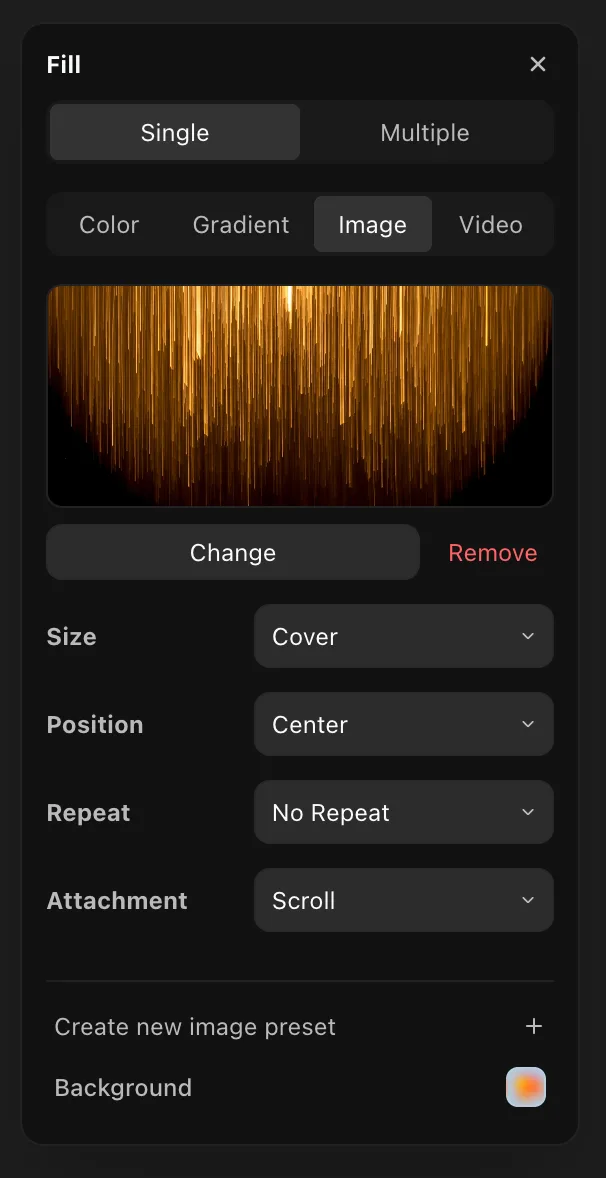
An image background controls how the image fills the frame:
- Size — cover, contain, or an exact size.
- Position — where the image sits in the frame.
- Repeat — tile the image or show it once.
- Attachment — scroll with the page or stay fixed.
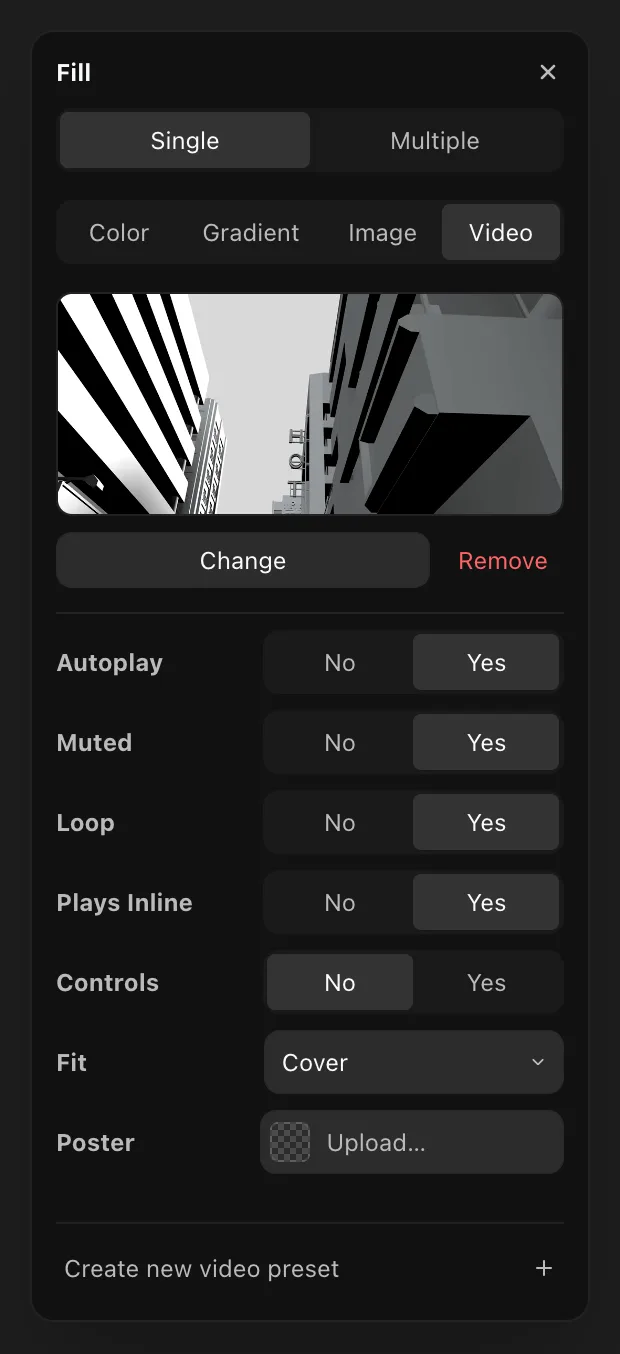
A video background gives you the playback controls you'd expect:
- Autoplay — start on load.
- Muted — required for autoplay in most browsers.
- Loop — restart when it ends.
- Plays inline — play in place instead of going fullscreen on mobile.
- Controls — show or hide the player bar.
- Fit — cover, contain, or fill.
- Poster — an image shown before the video plays.
Save any image or video background as a preset to reuse it.