Hover, tap, appear & loop
Four triggers cover most motion: hover, tap, appear, and loop. Add one from the + next to Animation in the right panel, then set the target styles.
Whenever you open an animation's popup, the panel shows a live preview of the target styles - you see exactly how the element looks during that animation as you tweak each value.
Hover
Animates while the pointer is over the element, then reverses when the pointer leaves. Pick Hover from the trigger menu to open the Hover Effect popup.
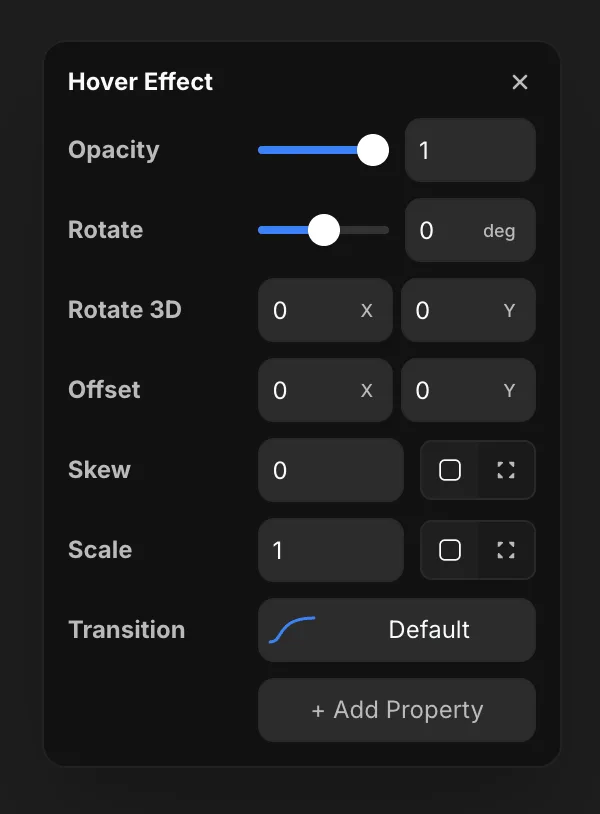
Each row is a property you can animate to on hover:
- Opacity - fade the element in or out.
- Rotate - spin it, in degrees.
- Rotate 3D - tilt it on the X and Y axes for depth.
- Offset - shift it on X and Y.
- Skew - slant it.
- Scale - grow or shrink it.
- Transition - how it moves: duration, delay, easing, or a spring.
Need more than these? Hit + Add Property to add any other animatable property to the hover effect.
Tap
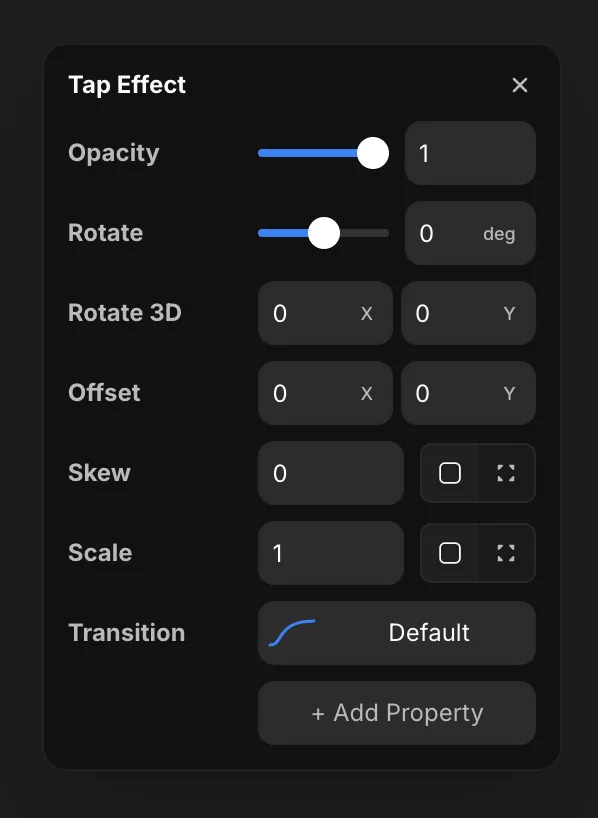
Animates while the element is pressed. The Tap Effect popup is the same as Hover - set the target styles the element animates to while held, and use + Add Property for anything extra.
Appear
Animates the element in when it loads or scrolls into view. The Appear Effect sets a Trigger (On Appear) and an Enter state, then a transition.
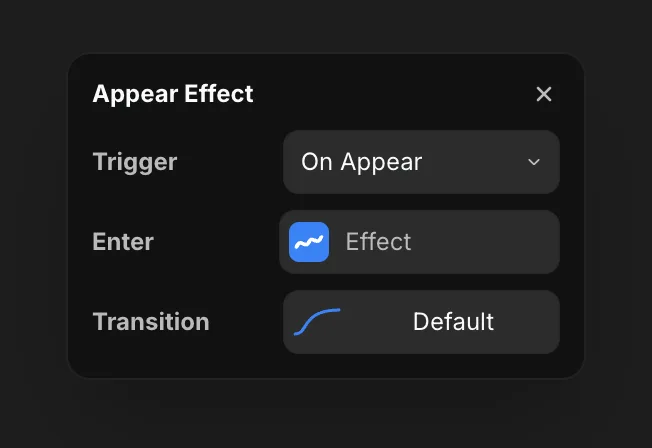
The Enter properties are the element's starting state. The element animates from those values to how it looks on the canvas. So an Enter with Opacity 0 and Offset Y 30 means it fades up into place - starting transparent and 30px down, then settling into its resting position. Use + Add Property to add more properties to animate from.
Loop
A loop runs forever - the element animates from its resting state to the target styles you set, then repeats. It's how you build spinners, pulses, floats, and ambient background motion.
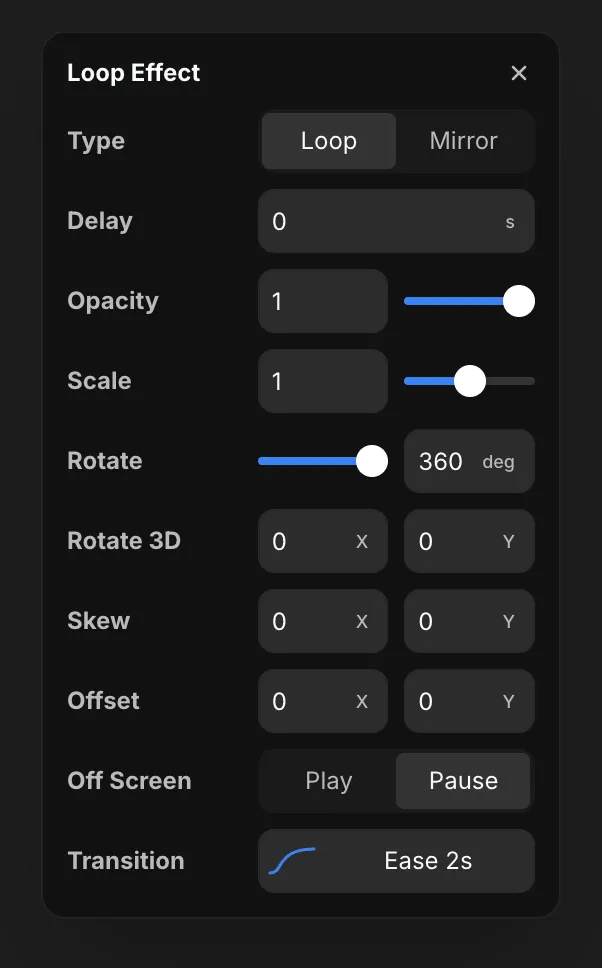
- Type - Loop restarts from the beginning each cycle; Mirror plays the animation forward, then backward (a yoyo).
- Delay - how long to wait before the loop starts.
- Target styles - Opacity, Scale, Rotate, Rotate 3D, Skew, and Offset are the values the element animates to on every cycle (e.g. Rotate
360for a continuous spin). - Off Screen - Pause stops the loop while the element is out of view (saves performance); Play keeps it running.
- Transition - duration and easing for one cycle.
Because the transition repeats, set values that read well over and over - a full 360° rotate loops seamlessly, while a partial angle visibly snaps back. For a multi-step sequence, use a Mirror loop so it eases back instead of jumping.