Collections, fields & items
The CMS (Content Management System) holds structured, repeatable content — products, blog posts, team members, anything you'd otherwise rebuild by hand over and over. You model it once as a collection, then fill it with items.
This page covers managing that content. To put it on your site — bind it to your design as a list or a per-item page — see Showing content.
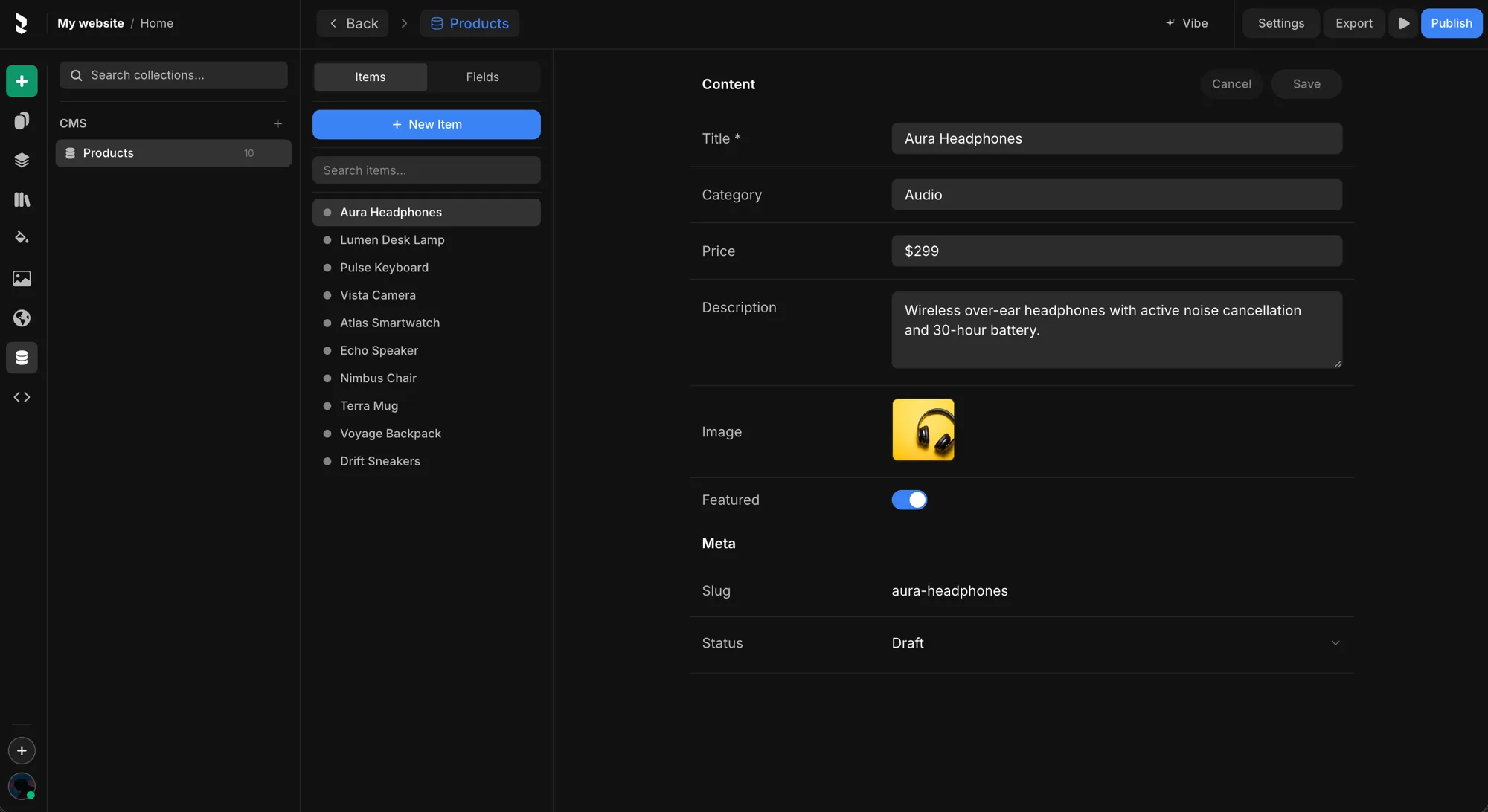
Open the CMS panel in the left sidebar to create a collection. Click a collection to open its editor, which has two tabs: Items and Fields.
Collections
A collection is the schema for one kind of content — for example Products. Every item in it shares the same fields.
- Open the CMS panel and hit + to create a collection.
- Define its shape in the Fields tab.
- Add records in the Items tab.
The collection's slug is its stable identity — renaming a collection changes its display name, not its slug.
Fields
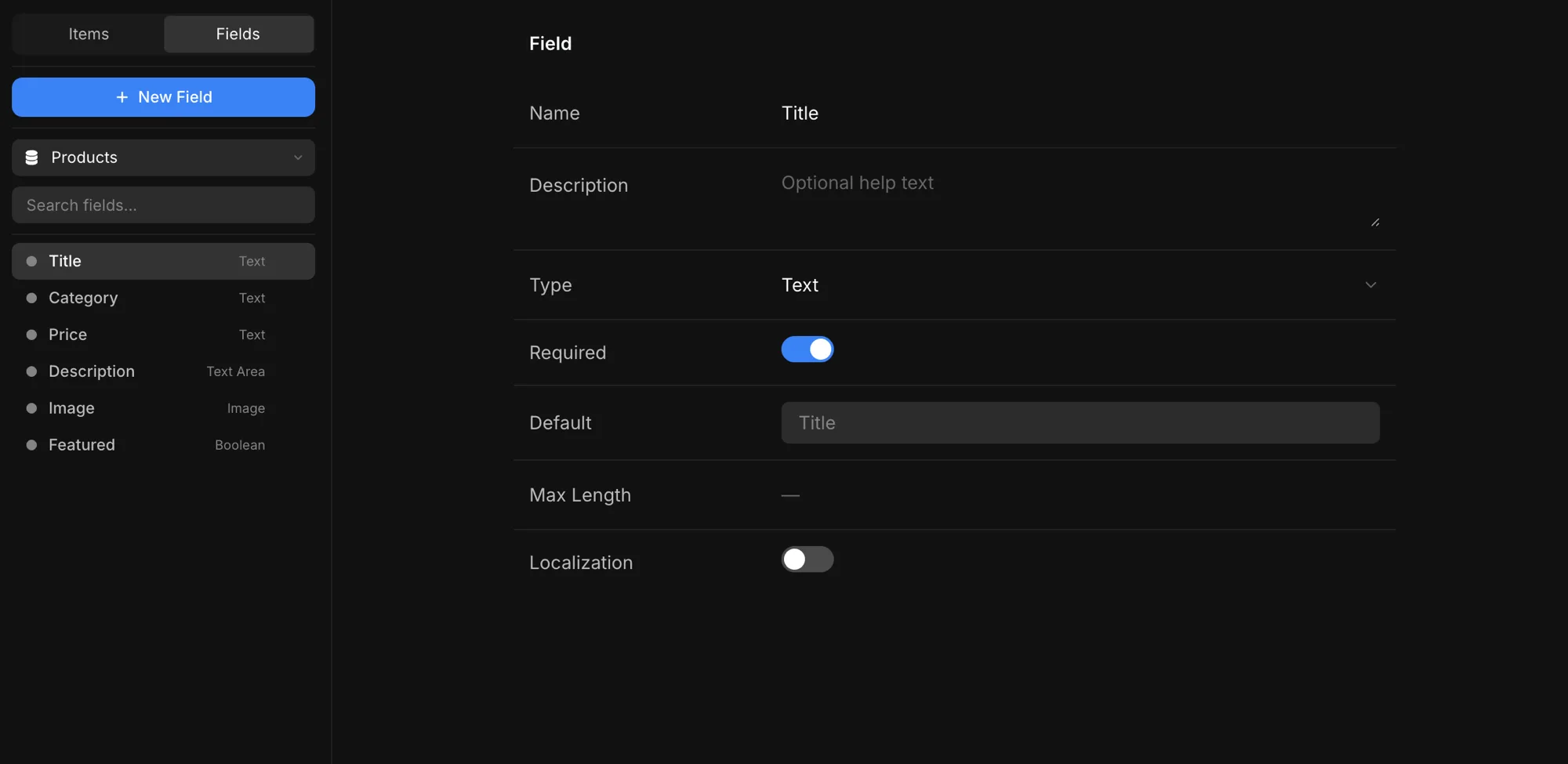
Fields describe each piece of data an item holds. In the Fields tab, hit New Field and pick a Type — the type decides what the field stores and which control you get when filling it in.
| Type | Holds |
|---|---|
| Text | a single-line string (title, name, price) |
| Text Area | multi-line plain text |
| Rich Text | formatted content — bold, headings, lists |
| Number | a numeric value (optional min / max / step) |
| Boolean | a true/false toggle |
| Date | a calendar date |
| Image | an image asset, from the media library |
| File | a file to download |
| URL / Link | a web address |
| Color | a color value |
| Enum | one option from a list you define |
| Tags | a list of short labels |
| Slug | a url-safe string |
| Reference / Multi-Reference | one or more items from another collection |
Each field also carries these settings:
- Name — the field's name. The control you bind to shows this name.
- Description — optional help text shown when filling the field.
- Required — whether an item must fill this field. (Hidden for Boolean, Color, Number, and Enum — those always carry a value.)
- Default — the value new items start with.
- Max Length — a character cap. Text, Text Area, and Rich Text only.
- Localization — lets the field hold a different value per language. Text, Text Area, and Rich Text only.
Items
An item is one record that fills the fields. In the Items tab, hit New Item and fill in its values. The editor has two sections:
- Content — one input per field, in the order you defined them. Required fields are marked with a *.
- Meta — the item's housekeeping:
- Slug — the item's URL segment (e.g.
aura-headphones), generated from the title and editable. - Status — Draft or Published. The dot next to each item shows its status; new items start as Draft.
- Slug — the item's URL segment (e.g.
Build it with AI
You don't have to model everything by hand. Open the Vibe chat inside the CMS editor and describe what you want — "create a 10-product catalogue with title, price, category, and image" — and it builds the schema and fills in the items. You can also ask it to add fields or generate more records later.
Once your content is in place, head to Showing content to put it on the page.