Connections
You can create connections between variants which allow you to create dynamic elements that animate on a desired action. For example: create a hover state of a button, make elements move on click, or even make the variant switch when it enters the viewport.
Create a Connection
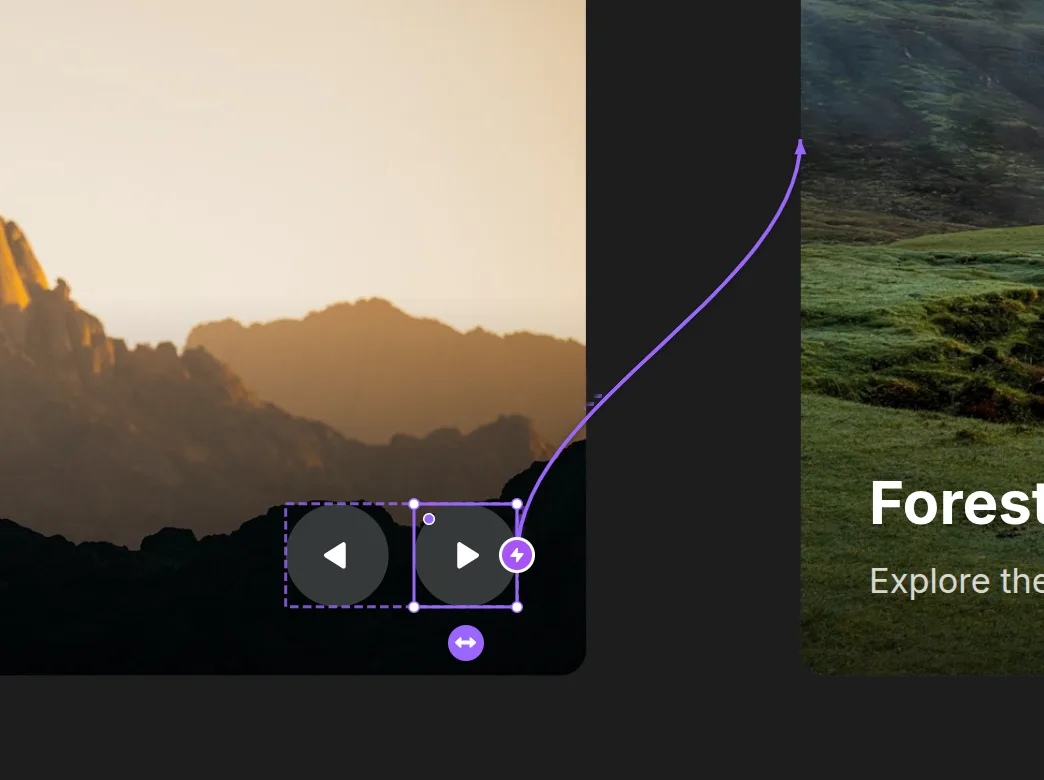
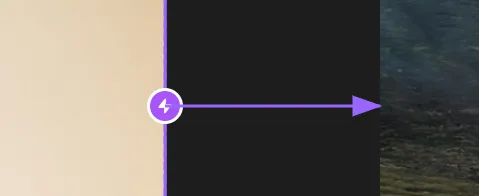
To create a new connection, look for the little purple Zap icons present on variants and children of variants. You can only connect to a top level variant element when creating a connection, since the whole variant will switch to that state.
Click on the Zap icon and drag it to the desired target variant.
Connection Types
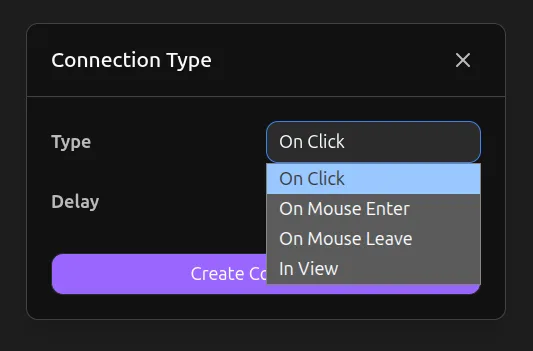
When you choose the target variant, a connection type modal will open where you can choose the action that triggers the variant switch:
- Click — Switches variant when the source element is clicked
- Mouse Enter — Switches variant when the mouse enters the element
- Mouse Leave — Switches variant when the mouse leaves the element
- In View — Switches variant when the element enters the viewport
The Delay property determines how much time passes after the action before switching to the target variant.