
The workspace
Learn how to navigate the Revyme builder interface.
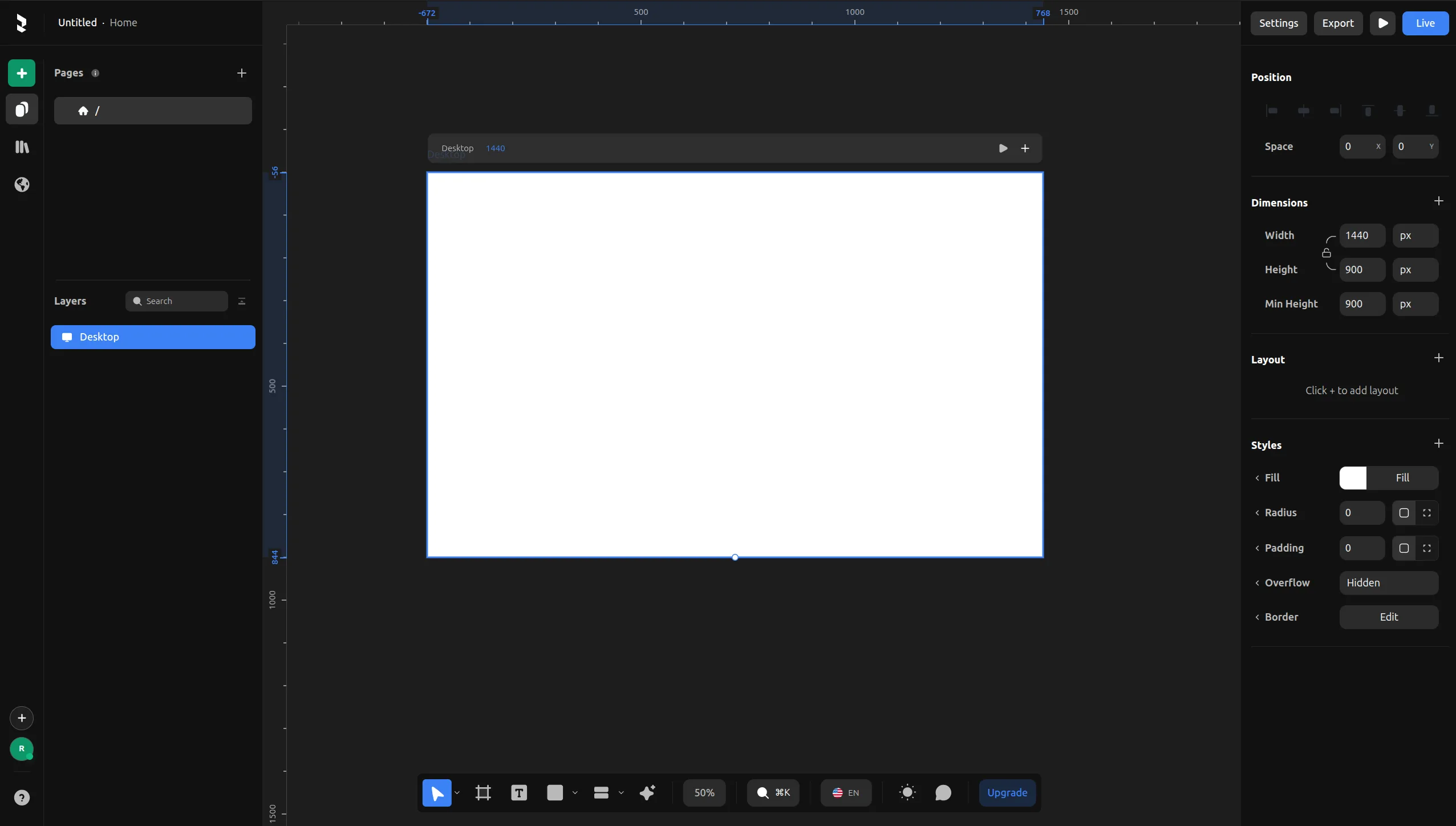
Canvas
The canvas is your main working area where you design your website. What you see here is exactly what your visitors will see.
Left Panel
Insert
Browse and add elements, sections, and components to your canvas. Drag and drop anything directly onto your design.
Pages & Layers
Manage your website pages and view the layer hierarchy. Organize, rename, and navigate through all elements on your canvas.
Library
Access your saved components and style presets. Create reusable elements and apply consistent styling across your website.
Localization
Add multiple languages to your website. Translate content and manage different locale versions for international audiences.
Help
Access the tutorial, documentation, and support resources to learn how to use Revyme.
Bottom Toolbar
Cursor
VSelect and move elements on the canvas. Click to select, drag to reposition. Dropdown includes Hand tool for panning.
Frame
FDraw containers, sections, and create hierarchies. Frames are the building blocks of your design.
Text
TAdd text elements. Click and drag to create a text box, then start typing.
Shapes
Dropdown menu to draw rectangles, circles, triangles, and custom paths. Great for decorative elements and icons.
Layouts
Dropdown menu to insert pre-configured row, column, and grid layouts to quickly structure your content.
AI Element
ACreate elements with AI assistance. Describe what you want and let AI generate the design.
Search
⌘KSearch for elements, actions, and commands with the command palette.
Language
Switch between different language versions of your website when localization is enabled.
Theme
Toggle between light and dark mode for your website design.
Comments
Add comments to your design for collaboration and feedback.
Right Panel
The right panel shows properties and styling options for the selected element.
To learn more about the properties toolbar and styling, go to Properties Toolbar.