
Style cascading
How Cascading Works
When you create an element on Desktop, it creates replicas on Tablet and Mobile viewports. You can modify the replica styles individually, meaning you are applying an individual style for that replica. The rest is inherited from the original (Desktop).
Resetting Overrides
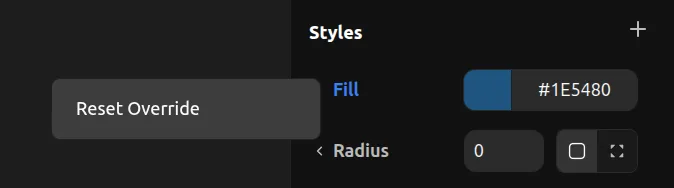
On the properties panel, when you select a replica, you can see the label name in blue — this means it's an individual style on that element that's different from the original. You can click Reset Override to clear that individual style and sync it back to Desktop.
Components Work the Same Way
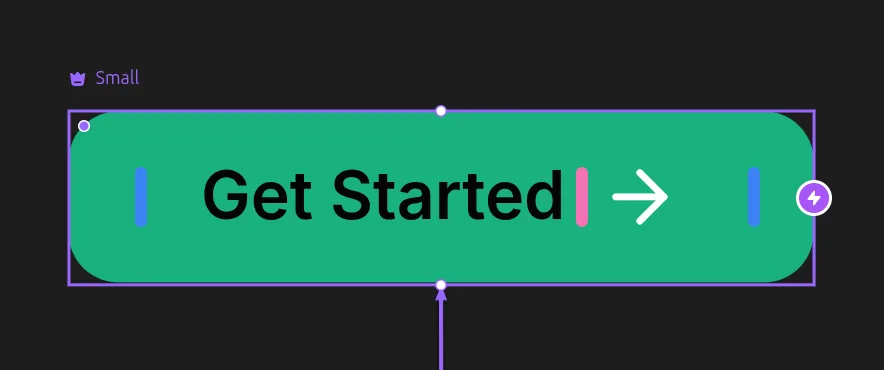
The first variant you create becomes the "Original" variant (similar to how Desktop acts for viewports). Everything you add here will be visible on the other variants automatically. Elements in other replica variants inherit from this original variant.
You can identify the original variant by the crown icon.
Hidden Elements
Anytime you add elements anywhere — even if you just add inside Tablet or Mobile viewport — the original and replica will be created everywhere with Hide: Yes. This means all your elements exist in all viewports and all master variants, just with different hidden configurations.
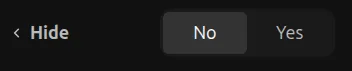
When you delete an element from Tablet, Mobile, or a replica variant, it will just set Hide: Yes on it — not actually deleting it. You can see hidden elements in the Layers panel to reactivate them easily.
If you want to completely delete an element, you have to delete it from Desktop or from an original variant.
Selecting Replicas
When an element is selected, you can right-click and go to Select → Replica or press Shift + B to jump between selecting replicas across viewports and variants.