
Best Practices for Animated Websites in 2026
Animation can make websites feel alive and guide users intuitively. But bad animation causes motion sickness, slows interactions, and drives users away.
This guide shows what works, what doesn't, with live examples you can test.
Rule 1: Timing Matters
Under 300ms or Instant
Animations over 300ms feel sluggish. Users perceive delays over 100ms. Most animations should be 150-250ms.
Animation Duration
Compare slow vs fast transitions
Too Slow (800ms)
Perfect (200ms)
Best durations:
- Hover effects: 150-200ms
- Page transitions: 200-300ms
- Micro-interactions: 100-150ms
- Avoid: Anything over 400ms
Rule 2: Animate the Right Properties
Transform and Opacity Only
Animating width, height, top, left, or margin forces the browser to recalculate layout for every frame. This causes jank.
Transform (scale, translate, rotate) and opacity run on the GPU—butter smooth at 60fps.
Performance Comparison
Feel the difference between layout and transform animations
Animating Width (Janky)
Animating Transform (Smooth)
Animate these (fast):
transform: scale()translate()rotate()opacity
Never animate these (slow):
widthheighttopleftrightbottommarginpadding
Rule 3: Respect Reduced Motion
10-15% of Users Have Motion Sensitivity
People with vestibular disorders can experience nausea, dizziness, or migraines from animations. The prefers-reduced-motion media query lets users opt out.
Reduced Motion Support
How animations should adapt for accessibility
Your system setting: Animations Enabled
Enable reduced motion in your OS settings to see the difference
With Animation
Reduced Motion (Instant)
Implementation:
/* Default: animated */
.element {
  transition: transform 0.3s ease-out;
}

/* Reduced motion: instant or minimal */
@media (prefers-reduced-motion: reduce) {
  .element {
    transition: none;
  }
}
Rules:
- Respect the system preference
- Replace motion with instant transitions
- Keep opacity fades (okay for most users)
- Never disable functionality
Rule 4: Don't Overdo It
Less Animation = More Impact
Every animation competes for attention. Five animations simultaneously is visual noise. One purposeful animation guides the eye.
Animation Intensity
Excessive vs subtle animations
Too Much (Distracting)
Subtle (Professional)
Guidelines:
- Animate 1-3 elements at a time
- Hover effects should be subtle (2-5% scale, 2-4px movement)
- Page loads: 1 hero animation maximum
- Avoid: Constant bouncing, pulsing, or spinning
Rule 5: Animate with Purpose
Every Animation Should Have a Job
Good animation provides feedback, shows relationships, or guides attention. Decorative animation without purpose is distraction.
Purposeful Animation
Animation as feedback vs decoration
No Feedback
Clear Feedback
Use animation to:
- Provide feedback: Button press, form submission
- Show relationships: Where did this element come from?
- Guide attention: Draw eye to important changes
- Communicate state: Loading, success, error
Don't use animation for:
- Pure decoration
- Filling empty space
- Making pages "feel premium"
Accessibility Checklist
Performance Tips
Quick Reference
• Keep animations under 300ms
• Animate transform and opacity only
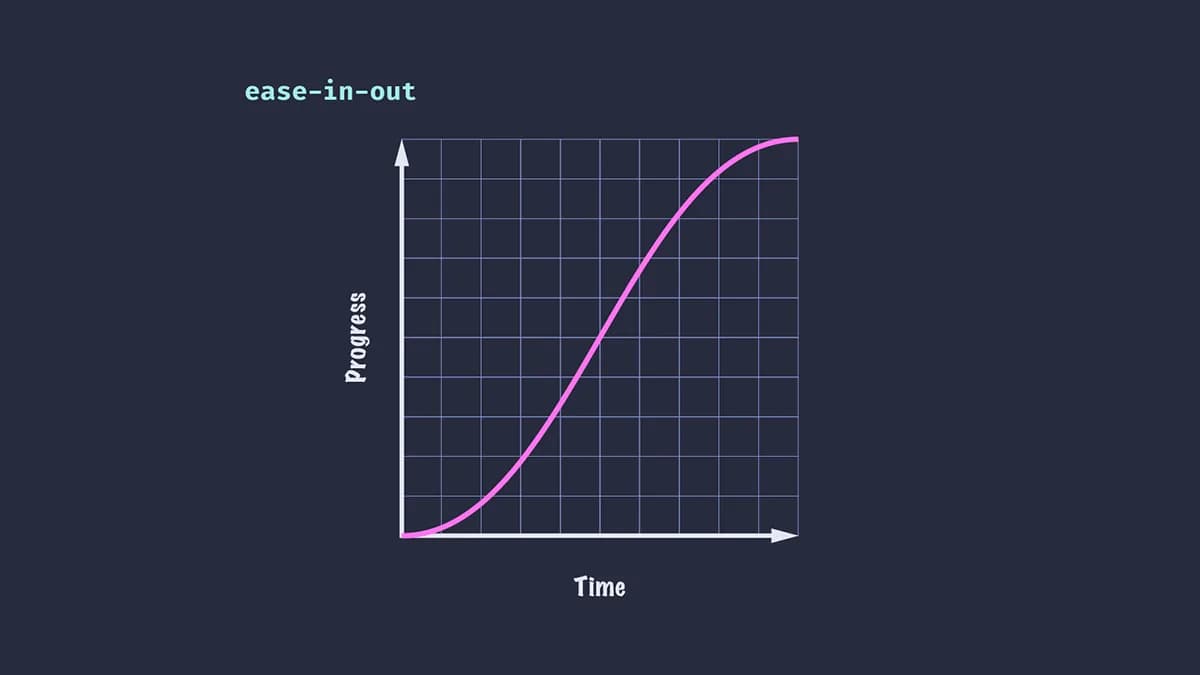
• Use ease-out or spring easing
• Implement prefers-reduced-motion
• Animate 1-3 elements at a time
• Give every animation a purpose
• Animate width, height, or position
• Use linear easing (except for loading)
• Ignore reduced motion preferences
• Animate everything simultaneously
• Add animation without a reason
• Make animations over 400ms
Final Thoughts
Great animation is invisible. Users shouldn't think "wow, cool animation"—they should just feel that your site is smooth, responsive, and easy to use.
The best animation:
- Responds in under 300ms
- Runs at 60fps
- Respects reduced motion
- Has a clear purpose
- Doesn't distract
Animate less. Animate better.
Continue Learning
- Animation Easings Explained - Master easing functions to make your animations feel natural
- The Best Web Animation Libraries - Choose the right library for implementing these best practices

Revyme